Start from the right page
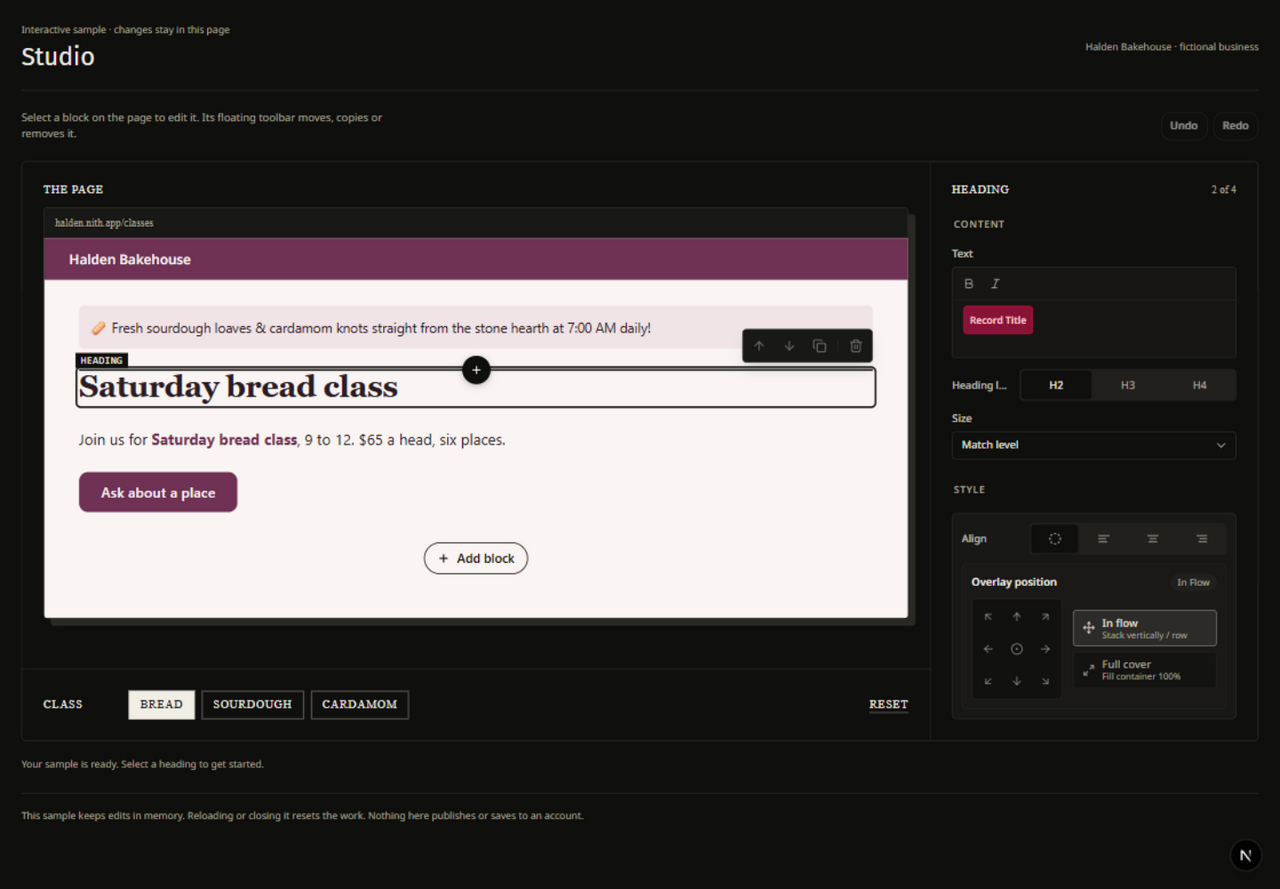
Choose the site in the dashboard and open Studio. Select the page you want to edit. The page canvas shows its current composition; selecting an element exposes the controls relevant to that element.
For a small content change, select the text, image or button you want to update. Keep headings descriptive, add useful alternative text to meaningful images, and choose a clear destination for each link.
Work with reusable design
Studio supports pages, themes, navigation and reusable blocks. A shared design element can affect more than one place. Before changing a reusable block or shared navigation, check where the change will appear. Templates and available recipes can differ between sites.
Use the available page and element structure controls to keep related content together. Prefer a consistent spacing and typography system over adjusting every element independently.
Save, preview and publish
Check the saved state before leaving your work. Preview the page at desktop, tablet and mobile widths, then follow its links and primary actions. Layout changes that look fine on a wide canvas can need a different arrangement on a narrow one.
Editing and publishing are separate permissions. If you can edit but cannot publish, ask the person responsible for the site to review your saved changes. Continue with Layouts and conditions for responsive controls or Workflows for interactions.